for more help contact makeareply@gmail.com
QuickContact is one of two contact managers currently available for S60 3rd devices. Compared on the most basic level to its competitor, QuickContact provides more functionality for half the price - with three different methods to browsing your contacts.
The first alone is worth the price of admission: Basic T9 support. This is how a smartphone phonebook should work. You begin by keying in the name (first or last) of the contact that you are searching for using T9, click select when you have entered enough characters to sufficiently narrow your search, and then select again with your desired contact highlighted. Plain and simple.
The second search method is rather unique and VITO refers to it as the "diamond panel"
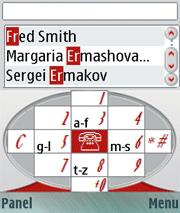
Press the directional keys as pictured by the panel beneath the contact list to select letter ranges in T9 fashion. You can choose two layouts - either "4 buttons" (only up, down, left, and right boxes contain letters) or "9 buttons" (all boxes immediately surrounding the center contain letters - and it actually should be eight instead of nine I think).
In the example above, the user has pressed [up] to select a letter from 'A' to 'F' and then [right] to select a letter from 'M' to 'S'. I prefer the 4 button layout so that I only have to press a direction one time to select a letter. There is a slight lag in between direction presses but this can be easily resolved by pressing the center select key on your joystick to confirm your entry. This may be more helpful once you get used to this method because you can search faster by pressing [up] [select] [right] [select] than if you press [up] wait [right] wait. This will all make much more sense once you try the app, and it's quite useful actually.
Once you get the hang of it, you'll find that you can select a contact with one hand without even looking at your display. I liken it to the dawn of mobile sms. At first, it took some getting used to before people could type efficiently on the keypad of a mobile phone. Now you can find 12-year-old children on playgrounds in Finland typing sms messages at 100 words per minute...
The last search method is my least favorite and what VITO simply calls "boxes".
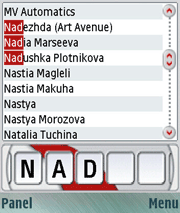
this method is more difficult than anything else but some users may enjoy it. Five empty boxes are displayed across the bottom of the screen and you press [up]/[down] to scroll through contacts one page at a time. When you have reached the first letter of the contact you are looking for, press [right] to select that letter. Subsequent presses of the [right] key will add additional letters to the boxes and [up]/[down] will change the letter in the last filled box. [Left] will go back one box.
As I said above, the T9 support alone makes this app a necessity for me. QuickContact is one of those apps where once you've tried it you don't know how you managed without it.
for more help contact makeareply@gmail.com
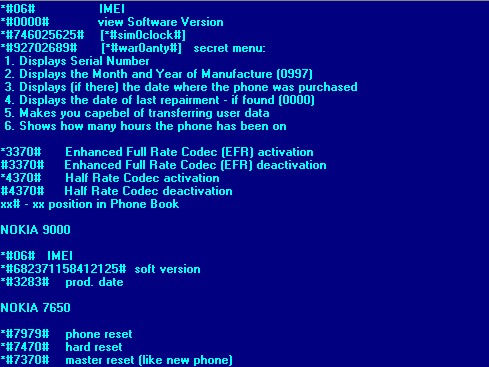
Check the IMEI*#06#
Check software version
*#8110#
Sim Clock Stop
*#746025625#
Warranty menu
*#92702689#
Press the following warranty code
6232 (OK) Displays the Month and Year of Manufacture
7332 (OK) Displays the date of the last repairment
7832 (OK) Displays the date where the phone was purchased
9268 (OK) Displays Serial Number
37832 (OK) Set the Purchasing Date MMYY
87267 (OK) Transfers ALL phone numbers, pictures, sounds from one phone to another
Hands Free
To continue an existing call when placing the 8110i into the hands free car kit without it dropping the call, press the Memory button just before connecting the cable and placing it in the cradle.
Display extra text in call costs feature
If your network operator doesn't offer a call costs service, you can still make use of that function to display some personalized text on the screen of your 8110i. Go to Menu, [5], [7], [1], enter PIN2-code and choose Set. Then type in the limit of the currency units you're using (if the call cost service worked, you would have to type the cost limit of the calls) and choose OK. In this case I typed 8110. Then go to the next sub menu (Menu, [5], [7], [2]), the Show costs in menu. Type in the PIN2 code again and select Currency. Type in the unit price, in this case number 1. Then type the name of the currency - you can use any string of letters and numbers 1-3 characters long. then type 2 letter then to confirm type two names beginning with one of each of the letters. Then press OK to confirm it.
Quick saving while in call
Saving numbers to memory during a call If you type a number into your phone during a call, you will lose it when the call ends. To prevent this happening just hold down Memory button -- the number will be saved (with no name) to the next available memory location.
Deleting SMS messages quickly
When reading an SMS message, instead of pressing Option, Erase to delete the message, simply press [C].
Turning lights on temporarily
If you have display lights turned off, you can turn them on by quickly pressing and releasing the power button. They will stay on as long as you are pressing button.
Silent mode temporarily
You can put your phone into silent ringing mode temporarily by pressing Menu then [#].
Closing the cover without ending a call
If you press the menu key and then close the sliding cover during a call you will not end your call.
Nokia 6150 Secrets (also work on other models)
Check the IMEI
*#06#
Service menu
*#92702689#
Show software version
*#0000# or *#6110#
Sim Clock Stop
*#746025625#
Warranty menu
*#92702689#
Press the following warranty code
6232 (OK) Displays the Month and Year of Manufacture
7332 (OK) Displays the date of the last repair
7832 (OK) Displays the date where the phone was purchased
9268 (OK) Displays Serial Number
37832 (OK) Set the Purchasing Date MMYY
87267 (OK) Transfers ALL phone numbers, pictures, sounds from one phone to another
Power Button Tip
If you press the button for a short moment, the menu with the profiles is shown on the display. If you press one more time, the mobile turns itself off. You can use the up and down cursor keys to scroll and enable a different alert setting.
The 54# Tip
Type 1#, 2#........54# on the keypad (when you're not in the menu) to get the phone number used for with this key when speed dialing.
Toggle Headset and Auto settings
#1: Try Connect the pin-out 1-2 (in front from the right.) to toggle headset settings (The phone will think that you ar using a headset - "headset" is displayed in the LCD)
#2:Try Connect the pin-out 2-3 (in front from the right.) to toggle auto settings (The phone will think that you are using it in the car - "auto" is displayed in the LCD)
Call Menu
(In a call) you can press and hold down the menu button for 3 sec. and a menu appears. (transfer, mute etc.)
Quick SMS Typing
When typing SMS messages, you have to wait some seconds before you can type the next letter if it is in the same button than the previous one. For example try to write the word "letter", you have to wait before you can enter the second "t". A much faster solution is to press the # button twice and then the letter "t".
The Reboot Trick
1. Go to calendar ( menu - 8 )
2. Make note / reminder
3. Enter some text into the edit box
4. Hold clear until whole text is cleared, then press back
5. Press 0. Main screen is shown but a space appears on the screen. You can't see it of course.
6. Enter 4 digits ( 1234 for example )
7. Use the down arrow to move the cursor to the left side of the numbers and the space (2 times down arrow)
8. Now enter 6 digits and press the green "Call button".
9. Wait some seconds..the phone will now flash the background light and finally reboot.
for more help contact makeareply@gmail.com

